Two ways to lay out clients
Teddit has two levels. A workspace holds people, API keys and one prepaid balance. A site is one brand inside it, with its own prompts, competitors, scan settings, schedule and monthly cap. An agency can use either level for a client.
| One workspace, a site per client | A workspace per client | |
|---|---|---|
| Balance | One, shared by all clients | One per client |
| Overview | All clients on one Sites page | Switch between workspaces |
| People | Invited once, limited to some sites if needed | Invited per workspace |
| Suits | An agency that pays for scans and bills clients for them | A client that tops up and owns its own balance |
Most agencies start with the first and move a client to its own workspace only when that client wants to pay Teddit directly. You can belong to several workspaces; switch between them from the account menu at the bottom of the sidebar, where New workspace… also creates one, with you as its Owner.
The Sites page: every client at a glance
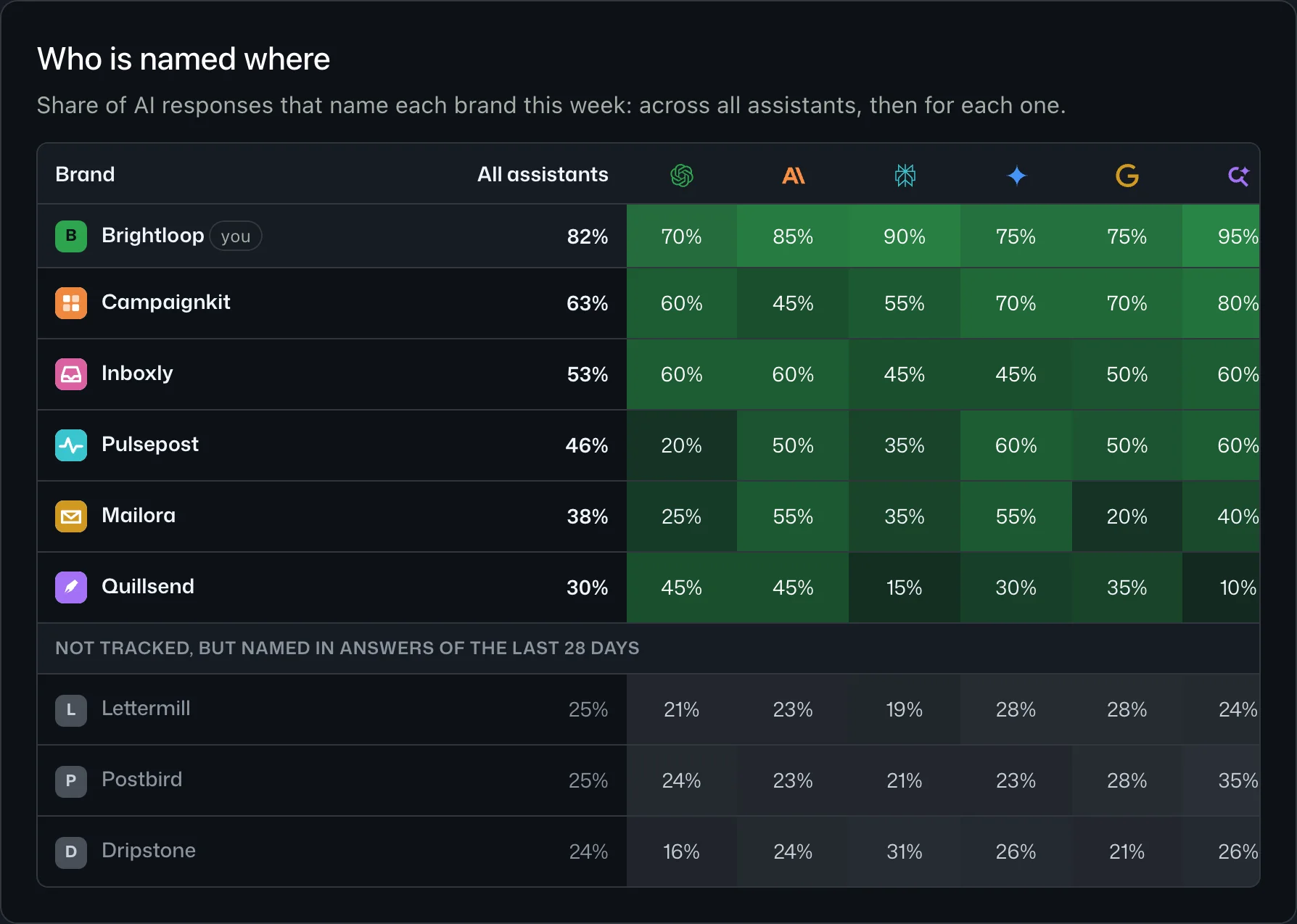
In a workspace with several sites, the Sites page is the agency’s home screen. At the top: how many sites, how many prompts across them, what was spent this month, and how many sites are over 90% of their monthly cap. Below, one row per client:
- the number of prompts and the share of answers that name the brand;
- whether the site is scanning now, measured, or not scanned yet;
- the spend this month against the site’s cap, as a bar that turns red near the cap;
- the number of competitors tracked.
Sort by Needs attention first to bring the clients named least to the top, or by Most spent this month before you send invoices. Add site asks for the domain, the brand name and a monthly cap; prompts, competitors and scan settings are added on the site itself.
Each site can carry the client’s logo and colour (Settings → Your brand), so its charts are recognisable when you share a screen. Competitors get their own colours and logos too.
A budget per client
With one balance for everyone, the per-site limits are what keep one client’s scans from eating another client’s budget.
- Monthly cap. Set in each site’s Settings under Scans and spending, or from Spend and caps by site on the Spending page. Once a site has spent its cap in a calendar month, its scans do not start, and a running scan stops. A scheduled scan that hits the cap is skipped, and Admins and Owners are told under the bell.
- Max per scan. In Scan settings. The most one scan may cost; left at 0, a scan stops at twice its estimate.
- Assistants and models. An Admin or Owner decides, per site, which assistants and models its scans may use. A client on a tight budget can be held to cheaper models.
For billing, the Spending page lists each site’s spend this month against its cap, with its scans and answers. On the 1st of each month Owners and Admins get a CSV statement of the month before, with every scan, the site it belongs to and its amount. That is the file to rebill from.
Who gets which role
Four roles, each including the one before it. For an agency they map onto the team like this.
| Role | Give it to | Because |
|---|---|---|
| Owner | The person who pays | Tops up the balance, downloads invoices, deletes sites. |
| Admin | Account leads | Runs scans, sets schedules and caps, adds sites, invites people. Admins always see every site. |
| Member | Strategists and content staff | Edits prompts, competitors and a site’s names, without spending money. |
| Viewer | The client’s own people | Reads every screen of the sites they are given and changes nothing. |
Members and Viewers can be limited to some sites: choose them under Sites when you invite, or later with Edit role and access on Members & roles. A site outside someone’s access does not exist for them. It is not in their list, and its spending, weekly email and notifications are left out for them. Their API and MCP keys see exactly the same sites.
So a client’s marketing lead can be a Viewer on their own site and nothing else, and read the same screens your team reads. Full details are on Roles.
Reporting to clients
- The weekly email. Each Monday after a week with a scan, everyone in the workspace gets one email with a section for each site they can see that was scanned that week, unless they switch it off. A client Viewer gets theirs without you forwarding anything.
- Links. The period you are looking at is kept in the page address, so a link you send opens on the same week or month.
- Your own AI. With a key connected through the MCP server, the prompt template
weekly_reviewdrafts a review of one site’s week. Run it per client, then edit it in your agency’s voice. The draft is your AI’s, written from Teddit’s data. See From numbers to a plan.
Keep each client’s setup the same from month to month: the same prompts, the same assistants and models, the same schedule. Clients mostly want to know what changed, and that question only has an answer when the measurement did not change with it. To start a new client, follow Setting up your first site.